Fretboard Diagram Maker - How to Create Guitar Fretboard Diagrams
Welcome to the Fretboard Diagrams Tool! This powerful fretboard maker helps you create professional fretboard diagrams directly from your guitar tablature. Whether you're visualizing scales, chord shapes, or note patterns, this guitar fretboard tool makes it easy to transform your tab notes into clear, visual fretboard diagrams.
This comprehensive guitar tab creator guide will show you how to use the fretboard tool to create, customize, save, and share fretboard diagrams with note names, numbering sequences, and more.
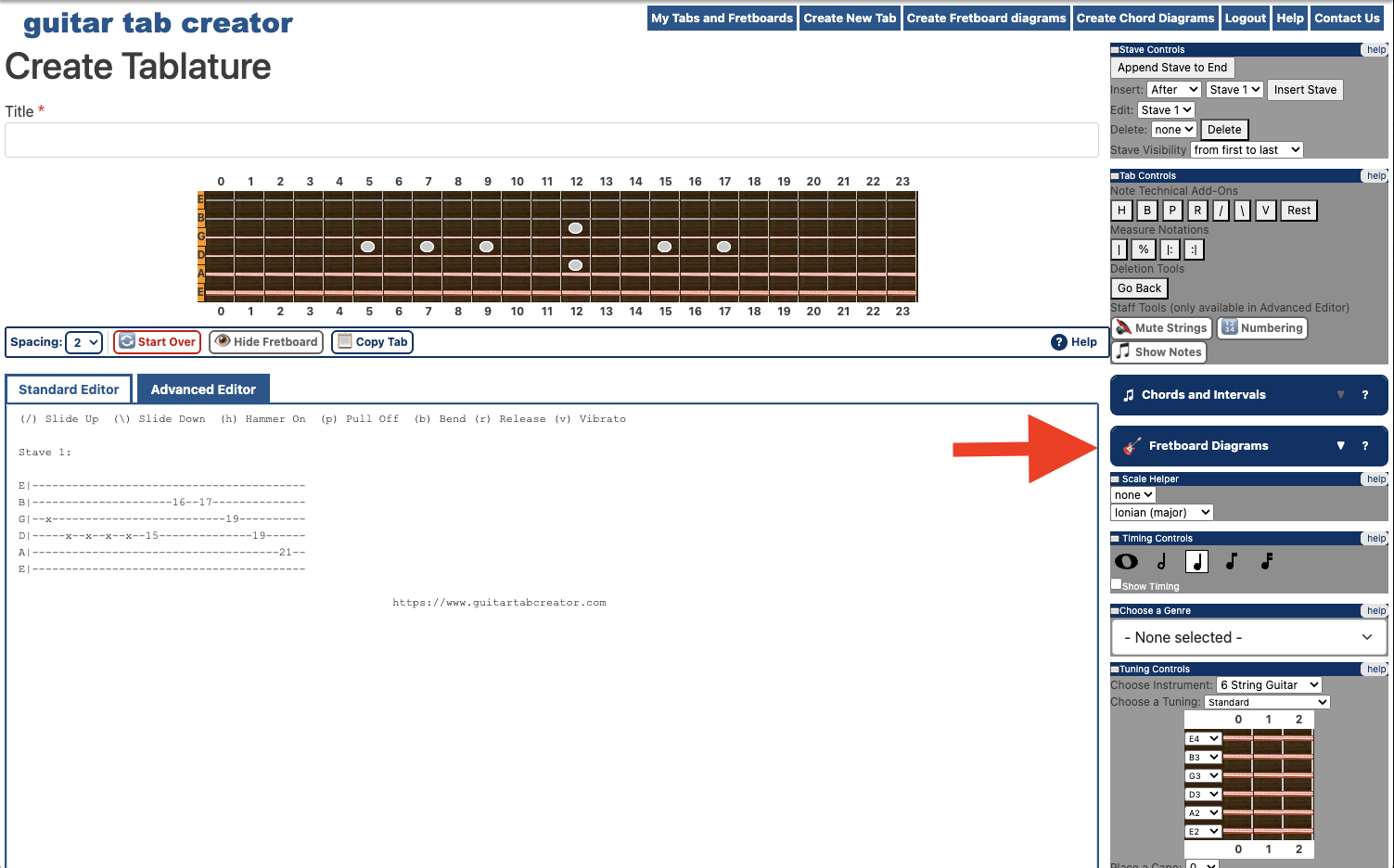
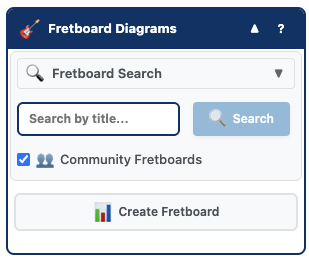
Getting Started: Opening the Fretboard Diagrams Tool
Understanding Fretboard Diagram Types
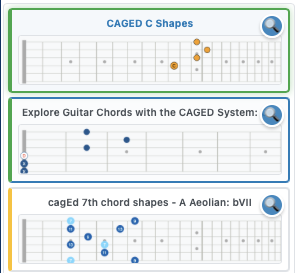
The Fretboard Diagrams tool provides access to three different types of fretboard diagrams, each distinguished by a unique background color:
Your Fretboard Diagrams (Green) - Diagrams that you've created and saved to your personal collection. These are private to your account and only visible to you.
Community Fretboard Diagrams (Yellow) - Diagrams created by other users and shared with the community. These fretboard patterns have been published publicly and are available for anyone to use.
System Fretboard Diagrams (Grey) - Built-in diagrams from our comprehensive library. These are pre-configured fretboard patterns covering common scales, arpeggios, and note patterns.
How the Fretboard Diagram Block Works
The Fretboard Diagrams block is designed to seamlessly integrate with your guitar tab creation workflow. Here's how this guitar fretboard maker works:
Integration with Guitar Tab Creator
- Automatic Note Extraction: The fretboard tool reads the notes you've already entered in your tablature and converts them into a visual fretboard diagram
- Real-time Preview: As you add notes to your tab, the fretboard diagram updates automatically to reflect your changes
- Bidirectional Workflow: You can either create diagrams from tab notes, or insert saved diagrams back into your tablature
- Stave-Specific Context: Each stave in your tablature can have its own independent fretboard diagram, allowing you to visualize different sections separately
Searching for Fretboard Diagrams
One of the most powerful features of the fretboard diagram tool is the ability to search through your saved diagrams and the community library quickly and easily.
Using the Fretboard Diagram Search
Search Tip
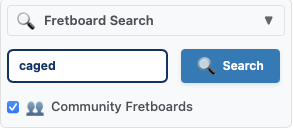
The search function uses a "contains" match, so searching for "major" will find "C Major Scale", "E Major Arpeggio", and any other diagrams with "major" in the title. You can also press Enter in the search box to trigger the search.
Browsing Search Results
When you search for fretboard diagrams, the results appear in an interactive vertical gallery view showing thumbnail previews of each diagram. This visual approach makes it easy to find exactly the pattern you're looking for.
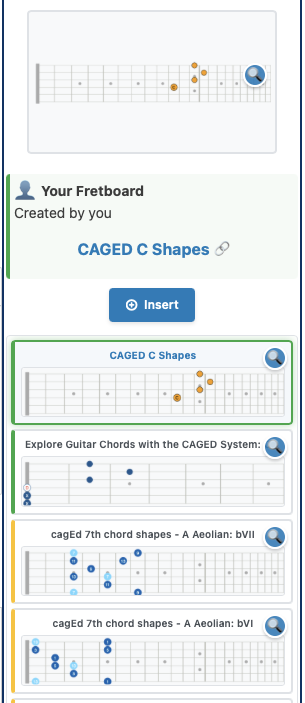
Viewing Diagram Details: Click on any thumbnail in the gallery to select that diagram. The fretboard diagram will enlarge in the preview area, and you'll see detailed information including:
- The diagram type (Your Diagrams, Community, or System) with corresponding color coding
- Author information (for Your Diagrams and Community diagrams)
- Diagram title/name
- Action buttons (Insert and Save)
Load More Results: If your search returns more than 10 results, a "Load More" button will appear at the bottom of the gallery. Click it to load the next page of results, which will be appended to the existing thumbnails.
Creating Your Own Fretboard Diagrams
The fretboard creator tool makes it incredibly easy to generate custom fretboard diagrams from your tablature. You can create diagrams for scales, chord shapes, riffs, or any note pattern you've written.
Enabling Fretboard Creation Mode
Step 1: Position your cursor in the tablature at the point where you want to start creating a fretboard diagram.
Step 2: Click the "Create Fretboard" button (it shows a guitar icon).
This activates fretboard mode and extracts all the notes from your current position onward in the tablature.

Step 3: Once fretboard mode is enabled, the interface updates to show:
- The button changes to "Exit Fretboard" - Click this to return to normal tab editing mode
- A live preview of your fretboard diagram showing all extracted notes
- Author information panel with save options

Understanding Note Extraction
When you click "Create Fretboard," the guitar fretboard tool automatically reads your tablature and converts the notes into a visual diagram. Here's what happens:
How Notes Are Extracted
- Starting Point: The tool begins reading from your current cursor position and continues to the end of the stave
- String Mapping: Tab strings are automatically mapped to fretboard strings (tab's top line = low E string)
- Tuning Awareness: The tool uses your instrument's tuning settings to correctly position notes
- Muted Strings: Notes marked with "x" in the tab (muted strings) appear on the diagram with an "X" marker
- Filtering: Empty positions, dots, and placeholder characters are automatically ignored
Real-time Diagram Updates
One of the most powerful features of the fretboard diagram maker is that your diagram updates automatically as you continue editing your tablature in fretboard mode.
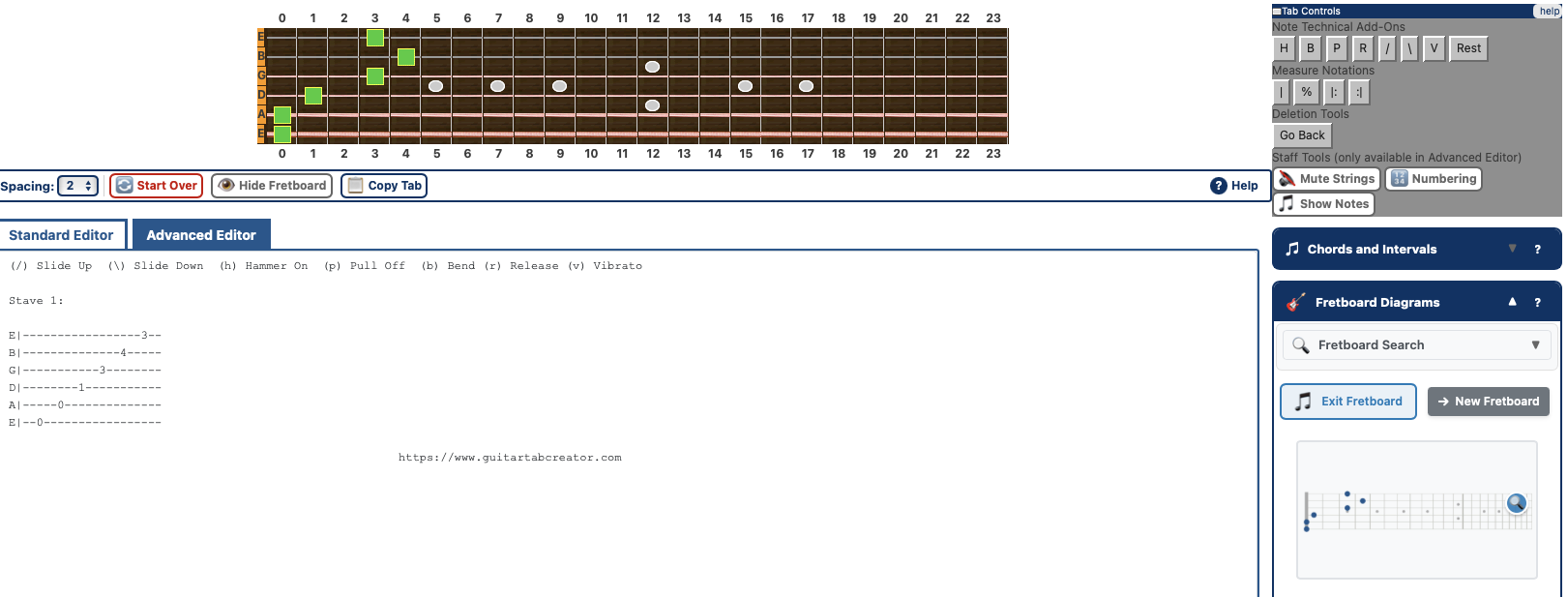
Previewing your Fretboard Diagrams
Using the insepction button next to each fretboard, you can expand the thumbnail and see a full sized image
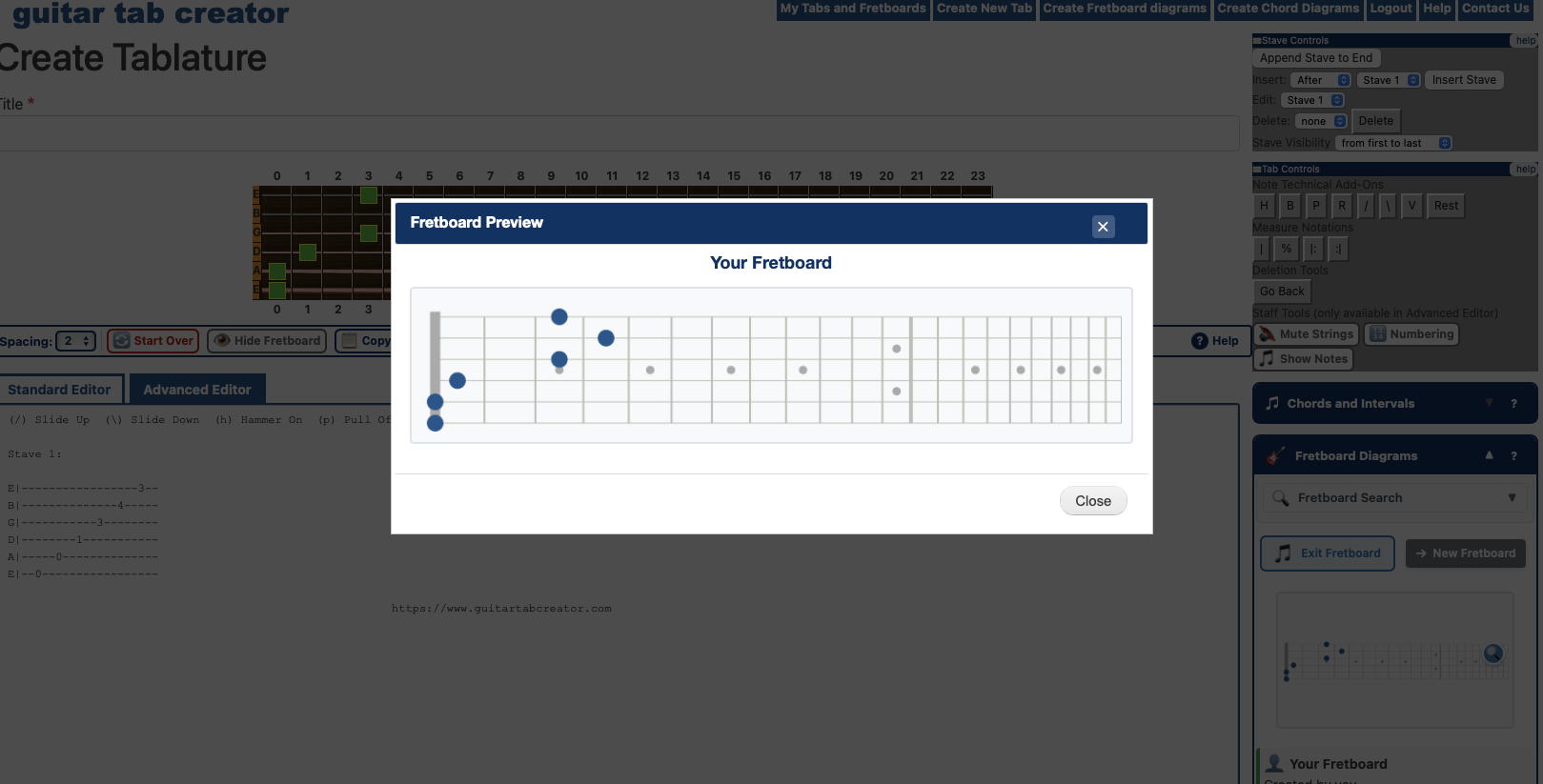
Unsaved Changes Warning
If you create or modify a fretboard diagram and then try to load a different diagram from the gallery, the tool will detect unsaved changes and ask if you want to save your work first. This prevents you from accidentally losing your custom diagram.
Using the Numbering and Show Notes Buttons
The fretboard diagram tool works seamlessly with the Guitar Tab Creator's numbering and show notes features to create enhanced, informative fretboard diagrams.
Show Notes Button
What It Does
The "Show Notes" button is located in the main tab editor toolbar. When activated before creating a fretboard diagram, it displays the actual note names (A, B, C, C#, D, Eb, etc.) on each dot in your fretboard diagram.
How It Works
- Automatic Calculation: The fretboard tool calculates note names based on your instrument's tuning and the fret positions in your tablature
- Chromatic Awareness: Uses proper chromatic scale calculation to determine sharps and flats
- Octave Handling: Correctly handles octave relationships across all fret positions
- Visual Display: Note names appear in white text on the colored fret markers
Use Case: Learning Scales and Theory
The Show Notes feature is incredibly useful for educational purposes. Guitar students can see not just where to place their fingers, but also understand which notes they're playing. This is perfect for creating scale diagrams, chord tone visualizations, and theory exercises.
Numbering Button
What It Does
The "Numbering" button is also located in the main tab editor toolbar. When activated before creating a fretboard diagram, it displays sequential numbers (1, 2, 3, 4...) on each dot, showing the order in which the notes appear in your tablature.
How It Works
- Sequence Tracking: Numbers are assigned in the exact order that notes appear in your tab, from left to right
- Incremental Display: Each note gets the next number in sequence (1, 2, 3, etc.)
- Visual Display: Numbers appear in white text on the colored fret markers
- Fingering Patterns: Perfect for showing picking sequences or finger placement order
Use Case: Teaching Picking Patterns and Sequences
The Numbering feature is ideal for creating instructional diagrams that show the exact order to play notes in a scale pattern, arpeggio, or exercise. This is especially helpful for teaching alternate picking, economy picking, or specific fingering sequences.
Button Priority: Which Button Takes Effect?
Last Button Pressed Wins: If both buttons have been pressed during your editing session, the fretboard diagram tool uses whichever button was pressed most recently. This "last mode" approach gives you flexibility to switch between note names and numbering as needed.
- If neither button is active, fretboard dots appear as solid colored circles without text
- If "Show Notes" was pressed last, note names appear on the diagram
- If "Numbering" was pressed last, sequential numbers appear on the diagram
- Muted strings (marked with "x" in tab) always show "X" regardless of button state
Inserting Fretboard Diagrams into Your Tablature
Once you've found or created the perfect fretboard diagram, you can insert it back into your tablature to quickly add note patterns to your composition.
Inserting Saved Diagrams
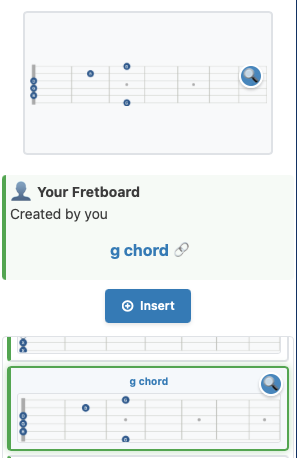
How Insertion Works
- Code Parsing: The tool reads the fretboard diagram code and extracts all note positions (string and fret numbers)
- Note Conversion: Fretboard string numbers are converted back to tablature string positions
- Sequential Addition: Each note is added to your tab in sequence, with dots filling other strings
- Cursor Advancement: Your tab cursor moves forward by the number of notes inserted, ready for continued editing
Saving Fretboard Diagrams to Your Collection
When you create a custom fretboard diagram or find a Community/System diagram you love, you can save it to your personal collection for easy access later.
Note for Anonymous Users
You must be signed in to save fretboard diagrams to your collection. If you're not logged in, you can still create and insert diagrams into your tablature, but the save feature will be unavailable. The tool will prompt you to log in if you attempt to save while not authenticated.
Saving a Custom Diagram You've Created
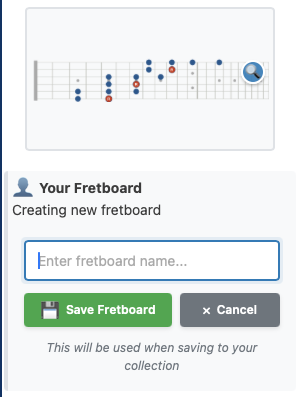
What Gets Saved
When you save a fretboard diagram, the following information is stored:
- Title: Your custom title for the diagram
- Fretboard Code: The complete diagram code including all note positions, colors, and text labels
- Display Settings: Canvas dimensions and rendering preferences
- Author Information: Your user account (making it "Your Diagram" in the gallery)
- Privacy Status: Diagrams are saved as unpublished (private) by default
Saving Community or System Diagrams
You can also save Community (yellow) or System (grey) fretboard diagrams to your personal collection, making them easier to find and use in future projects.
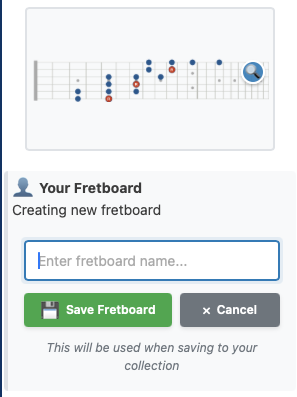
Important Note
You cannot save a diagram that already exists in your collection. If you select one of your own diagrams (green background), the "Save" button will be hidden since it's already in your library.
Integration with the fretboard diagram tool
all of the fretboard diagrams you make and save are compatible with the fretboard diagram tool, where you can customize the fretboards even further. Learn about how to use the fretboard diagram tool
Save Dialog Features and Edge Cases
Dialog Functionality
- Cancel Button: Click "Cancel" to close the save dialog without saving. Your diagram remains in the editor for continued work.
- Enter Key: Press Enter while focused in the title input field to quickly save without clicking the button
- Validation: The tool prevents saving empty diagrams - you must have at least one note in your diagram
- Success Feedback: A green flash message appears for 2 seconds after successful save, then fades out
- Gallery Refresh: After saving, the gallery automatically refreshes to include your newly saved diagram
Understanding Edge Cases and Special Behaviors
The fretboard diagram maker includes several smart features to protect your work and handle special situations.
Unsaved Work Detection
Automatic Protection
The fretboard tool automatically tracks whether you have unsaved modifications to your current diagram. If you try to switch to a different diagram from the gallery while you have unsaved work, you'll see a confirmation dialog:
"You have an unsaved fretboard diagram. Would you like to save it first?"
- Click OK: Opens the save dialog so you can save your work before switching
- Click Cancel: Discards your current work and loads the selected diagram
When Unsaved Work is Detected
The tool considers you to have unsaved work in these situations:
- You created a new fretboard diagram with notes from your tablature
- You added or modified notes in your tab while in fretboard mode, causing the diagram to update
- You have not clicked "Save Fretboard" since making these changes
The tool clears the unsaved work flag when:
- You successfully save your diagram
- You load a different diagram from the gallery
- You exit fretboard mode
- You switch to a different stave
Empty Diagram Handling
No Notes Selected: If you activate fretboard mode at a position in your tablature that has no notes, the preview area will display "No notes selected" and the save button will be hidden. This prevents saving empty diagrams.
To create a diagram, you need at least one note in your tablature at or after your cursor position.
Stave Switching Behavior
Stave-Specific Context: When you switch from one stave to another in your tablature (e.g., from verse to chorus), the fretboard tool automatically:
- Resets to the new stave's current cursor position
- Creates a fresh fretboard diagram from the new stave's notes
- Clears any selected gallery diagram
- Resets modification tracking
This allows each section of your tablature to have its own independent fretboard diagram visualization.
Pagination and Load More
Efficient Loading: Search results are paginated to improve performance:
- Initial searches return the first 10 results
- If more than 10 results exist, a "Load More" button appears
- Clicking "Load More" fetches the next 10 results and adds them to the gallery
- Results remain in the gallery until you perform a new search
- A loading state prevents duplicate requests if you click "Load More" multiple times quickly
Authentication Requirements
Login Required for Saving: Several features require you to be logged in:
- Saving custom fretboard diagrams to your collection
- Copying Community or System diagrams to your collection
- Accessing your personal diagram library
If you're not logged in, these features will show a prompt: "Please log in or register to save fretboards."
You can still use these features while not logged in:
- Creating fretboard diagrams from your tablature
- Searching and browsing Community and System diagrams
- Inserting diagrams into your tablature
Tips for Effective Fretboard Diagram Creation
Use Descriptive Titles
When saving fretboard diagrams, use clear, descriptive titles that will help you find them later. Include the key, scale/pattern type, and position if applicable (e.g., "G Major Scale - Position 2", "D Minor Pentatonic - Box 1", "C Major Arpeggio - 8th Fret").
Leverage Show Notes for Learning
When creating fretboard diagrams for educational purposes, activate the "Show Notes" button before entering fretboard mode. This creates diagrams that teach note locations on the fretboard, making them valuable learning resources for students.
Use Numbering for Technique Exercises
For exercises focused on picking patterns, fingering sequences, or note order, activate the "Numbering" button before creating your diagram. This shows students exactly which order to play the notes, making it perfect for technical exercises and drills.
Build a Personal Library
Get in the habit of saving useful fretboard patterns you create. Building a personal library of scales, arpeggios, and chord shapes makes your future composing and arranging work much faster. You can quickly insert these patterns into new tabs without recreating them.
Explore Community Diagrams
Don't forget to check the "Community Fretboards" checkbox when searching! You'll discover creative patterns and variations contributed by fellow musicians. If you find useful community diagrams, save them to your collection for quick access.
Use Strategic Cursor Positioning
Before clicking "Create Fretboard," position your cursor at the exact start of the pattern you want to visualize. The tool extracts notes from that position onward, so proper cursor placement ensures you capture exactly the notes you want in your diagram.
Workflow Summary
Quick Reference: Creating and Saving a Fretboard Diagram
- Write your note pattern in the tablature (scale, arpeggio, chord, etc.)
- (Optional) Click "Show Notes" or "Numbering" in the main toolbar if you want labeled diagrams
- Position your cursor at the start of the pattern
- Click "Fretboard Diagrams" header to open the tool
- Click "Create Fretboard" button (guitar icon)
- Review your diagram in the preview area
- Click "Save" button to open the save dialog
- Enter a descriptive title
- Click "Save Fretboard" or press Enter
- See confirmation message: "Fretboard saved!"
Quick Reference: Finding and Inserting a Saved Diagram
- Click "Fretboard Diagrams" header to open the tool
- Enter search term in the search box (or leave blank to browse all)
- (Optional) Check "Community Fretboards" for more results
- Click "Search" button or press Enter
- Browse thumbnails in the vertical gallery
- Click a thumbnail to select and preview the diagram
- Position cursor in your tablature where you want notes inserted
- Click "Insert" button
- Notes appear in your tablature at cursor position
The Guitar Tab Creator fretboard diagram tool is a comprehensive fretboard maker designed for guitarists, teachers, and composers. Whether you're creating guitar fretboard diagrams for scales, arpeggios, chord shapes, or custom patterns, this fretboard creator integrates seamlessly with your tab creation workflow. This guitar fretboard tool helps you visualize note patterns on the fretboard, making it easier to learn, teach, and share guitar techniques. Create professional fretboard diagrams with note names, numbering sequences, and custom layouts using our intuitive fretboard diagram maker.
Conclusion
The Fretboard Diagrams tool brings powerful visualization capabilities to your guitar tab creation workflow. Whether you're a teacher creating educational materials, a student learning scale patterns, or a composer documenting your musical ideas, this fretboard maker adapts to your needs.
The seamless integration between tablature and fretboard diagrams means you can work fluidly - creating diagrams from your tabs, inserting saved patterns back into your compositions, and building a personal library of reusable fretboard patterns.
Combined with the Show Notes and Numbering features, you can create comprehensive, instructional fretboard diagrams that communicate not just finger positions, but also note names and playing sequences. This makes the tool invaluable for both learning and teaching guitar.
Take time to explore the search functionality, experiment with creating diagrams from different sections of your tablature, and build your personal fretboard diagram library. The visual feedback and automatic note extraction make fretboard diagram creation faster and more intuitive than ever before.
Happy fretboard diagramming!